Overview
Display Glasses Web Apps, Simulated in Your Browser
DisplayGlasses.dev is a free simulator for optical waveguide display glasses like the Meta Ray-Ban Display. Point it at any public URL — a prototype, a staging build, a shipped site — and it renders the way a wearer sees it, over a real-world scene, so it can sit open beside your design tool while you iterate. Every setup is a link you can send, a recording you can post, or a still you can drop into a deck.
What DisplayGlasses.dev does
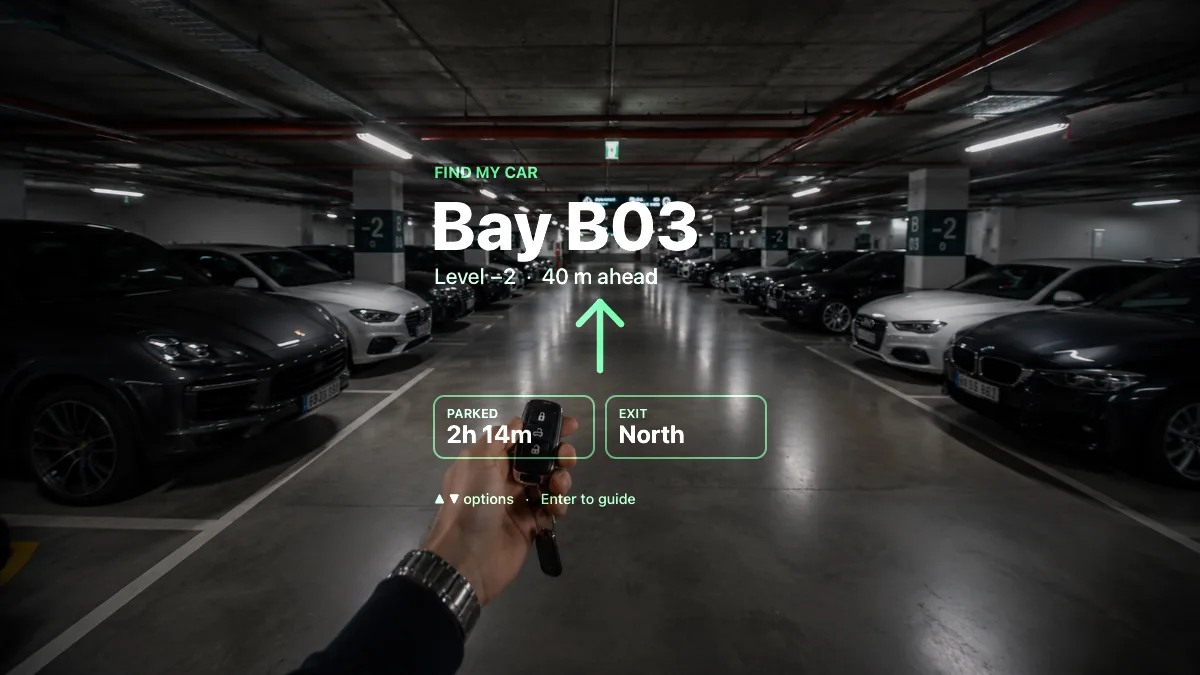
Enter a public URL and the Simulator loads that page into a simulated heads-up display, then composites it over real-world video using the additive light blend an optical waveguide produces. Controls for background scene, brightness, size, and placement let you assess legibility and contrast under varying conditions.
The application stays live and interactive inside the display, so you can operate it exactly as a wearer would. From there you can:
- Record the screen to capture how a layout holds up over motion.
- Take a screenshot of the composited view for specs, decks, and reviews.
- Share the working prototype through a link that restores your exact setup.
- Generate a QR code to open the application on a pair of glasses.
The tool is free and runs entirely in the browser. No account, SDK, installation, or hardware is required.
What are display glasses?
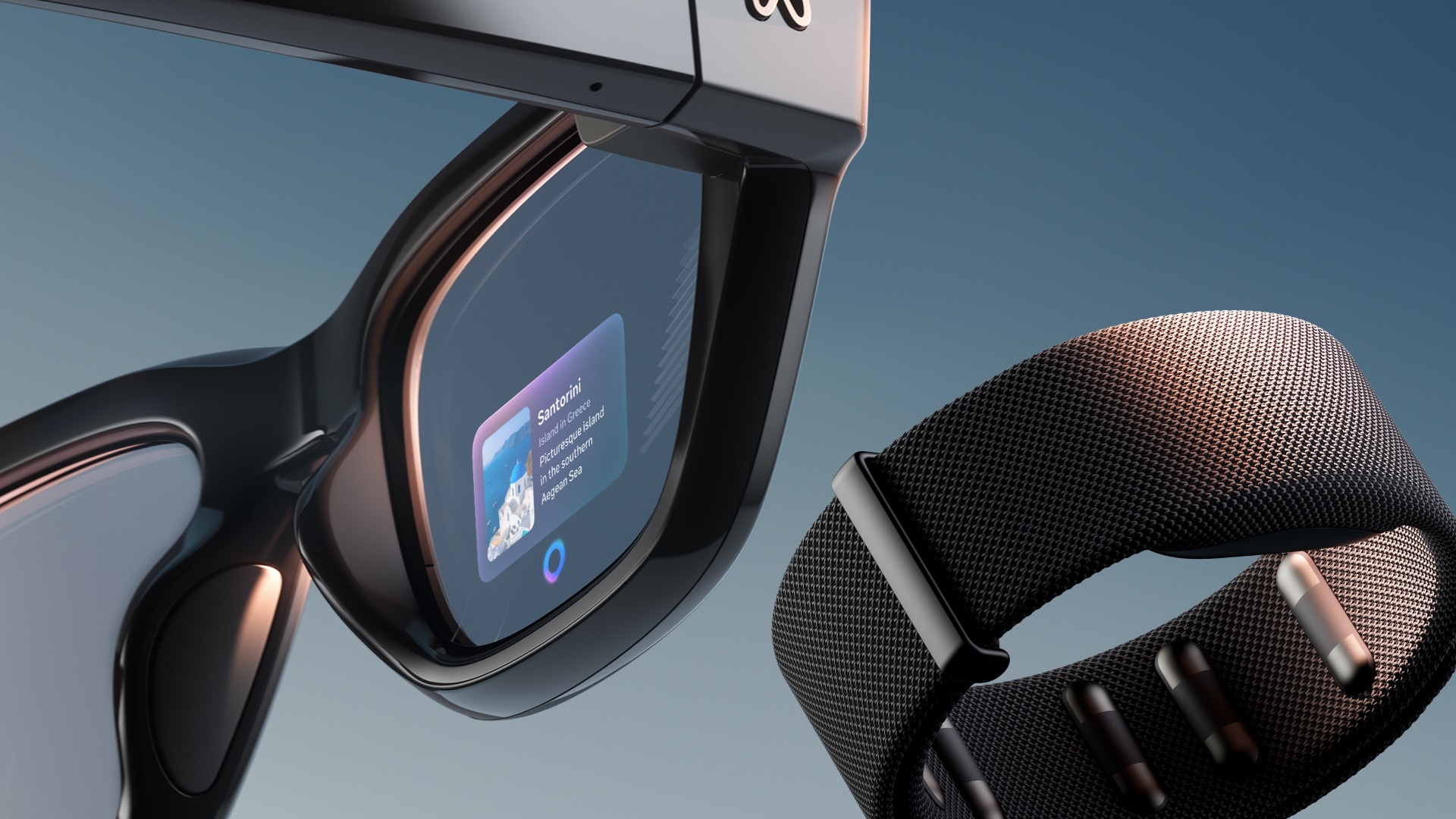
Display glasses place a small, transparent, full-color screen within the wearer's line of sight. Instead of a backlit panel, an optical waveguide carries projected light across the lens and into the eye, so the image is overlaid on the surrounding environment. The Meta Ray-Ban Display is the first widely available product of this type.
Three things that make them different
- Additive light. The display adds light rather than blocking it, so black emits nothing and reads as fully transparent. You design in light, not ink.
- Monocular. The image sits in one eye, the right lens, so the canvas is small, glanceable, and off to one side.
- See-through. Whatever is behind the graphic shows through it. Contrast fights a moving, unpredictable background.
Everything the simulator does follows from the first point. If you take one idea away: pure black is invisible, and brightness in your design is literally brightness on the glass.
How web apps work on the glasses
Meta opened Ray-Ban Display to third-party developers with two paths. One is a native mobile SDK. The other, and the one this simulator serves, is Web Apps: ordinary HTML, CSS and JavaScript, rendered on the glasses with no companion app required.
Practically, that means you build a website. Host it at a public https:// URL, generate a QR code, scan it to add the app to your glasses through the Meta AI app, and it runs on the display.
Input comes from the Neural Band wristband and reaches your app as standard directional and activation events, so every interactive element has to be reachable without a mouse or touch.
Beyond the Meta Ray-Ban Display
The simulator models a category, not a single product. What it reproduces (canvas size, monocular placement, additive blend, brightness, tint) is a device profile, so new hardware is largely a matter of new numbers rather than a new tool.
Android XR and Samsung's forthcoming glasses, Even Realities, Mentra, and whatever follows are all on the roadmap as profiles. One honest caveat: previewing a design for a device is always possible, but whether you can run a web app on it is decided by that platform, not by us. Some devices ship a browser-class runtime; some don't ship one at all.
Building for a device that isn't covered yet, or want one prioritized? Tell us on the support page. Feature requests, device profiles, and bug reports all land in the same place.
Read next
How the Simulator works
The additive blend model, the 600×600 canvas, and what every control does.
Creating your own Web Apps
Build, test and ship your app, plus the color, type and layout rules that survive daylight.
Web App examples
Seven working demos, each openable in the simulator with one click.